free · open source · native macOS
Every app, its own output.
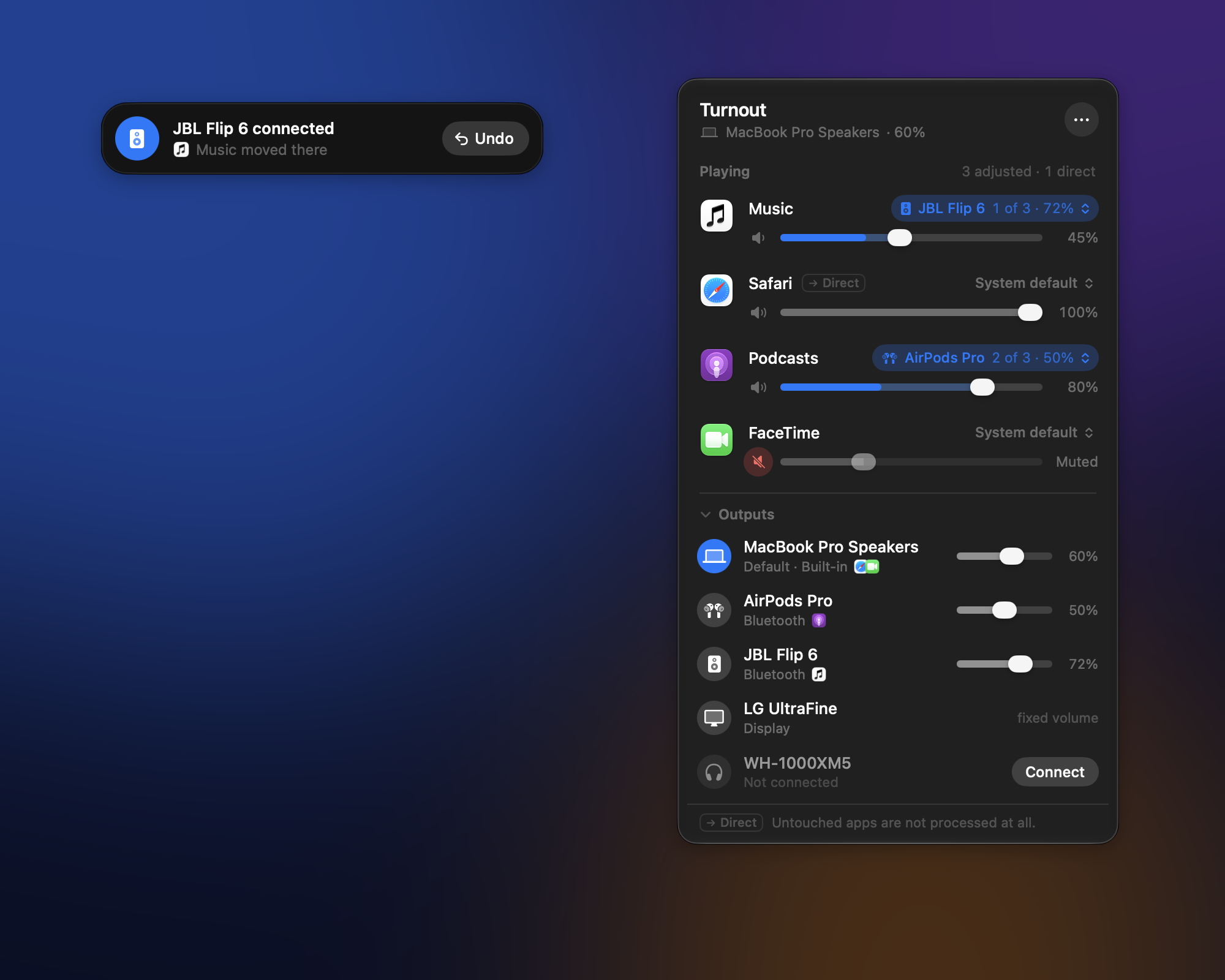
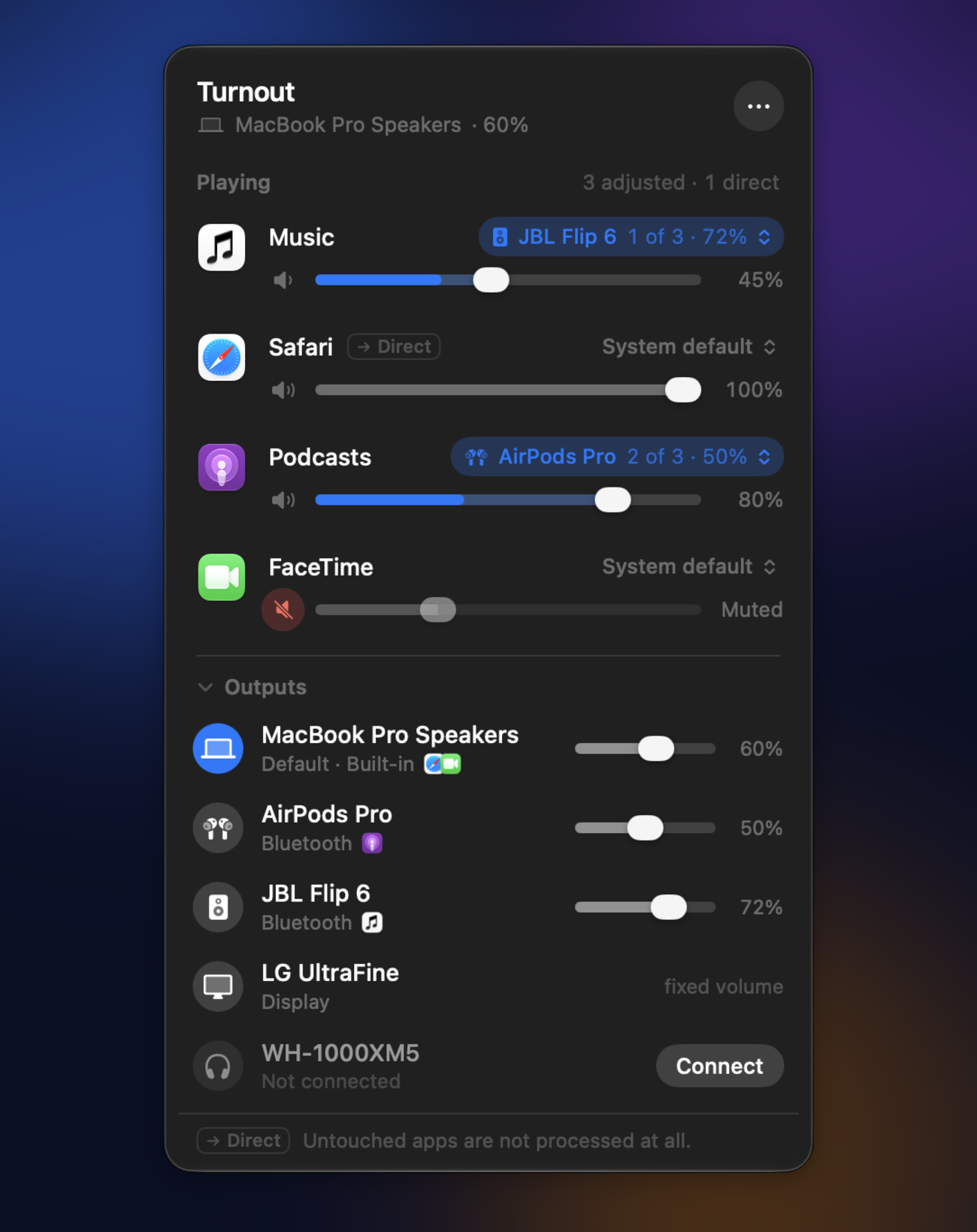
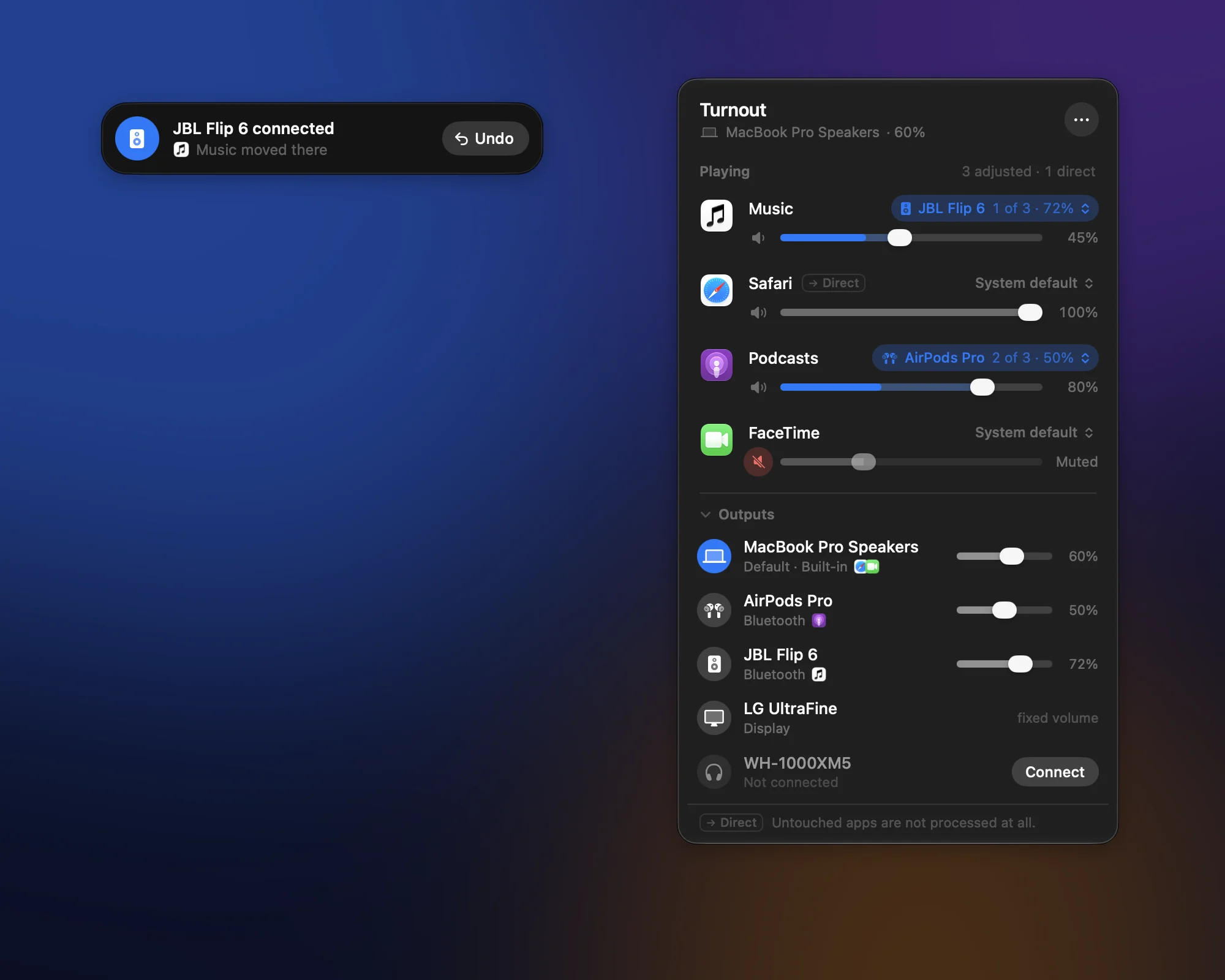
Turnout gives every app on your Mac its own volume and its own output – music on the Bluetooth speaker, the podcast in your AirPods, the call on the Mac. Plug in a speaker and the apps that belong there move over by themselves. Apps you don't touch aren't touched at all.
Version 0.2.0 · · Release notes · 17 tests
macOS 26 or later (tested on macOS 27) · Developer ID signed & notarized · Apache-2.0
Written largely by AI – Anthropic's Claude. How it was made
- Volume per app
- Output per app
- Priority lists
- Auto-switch
- Bluetooth
- AirPlay
- USB
- Displays
volume · per app
Turn the call down, not the music.
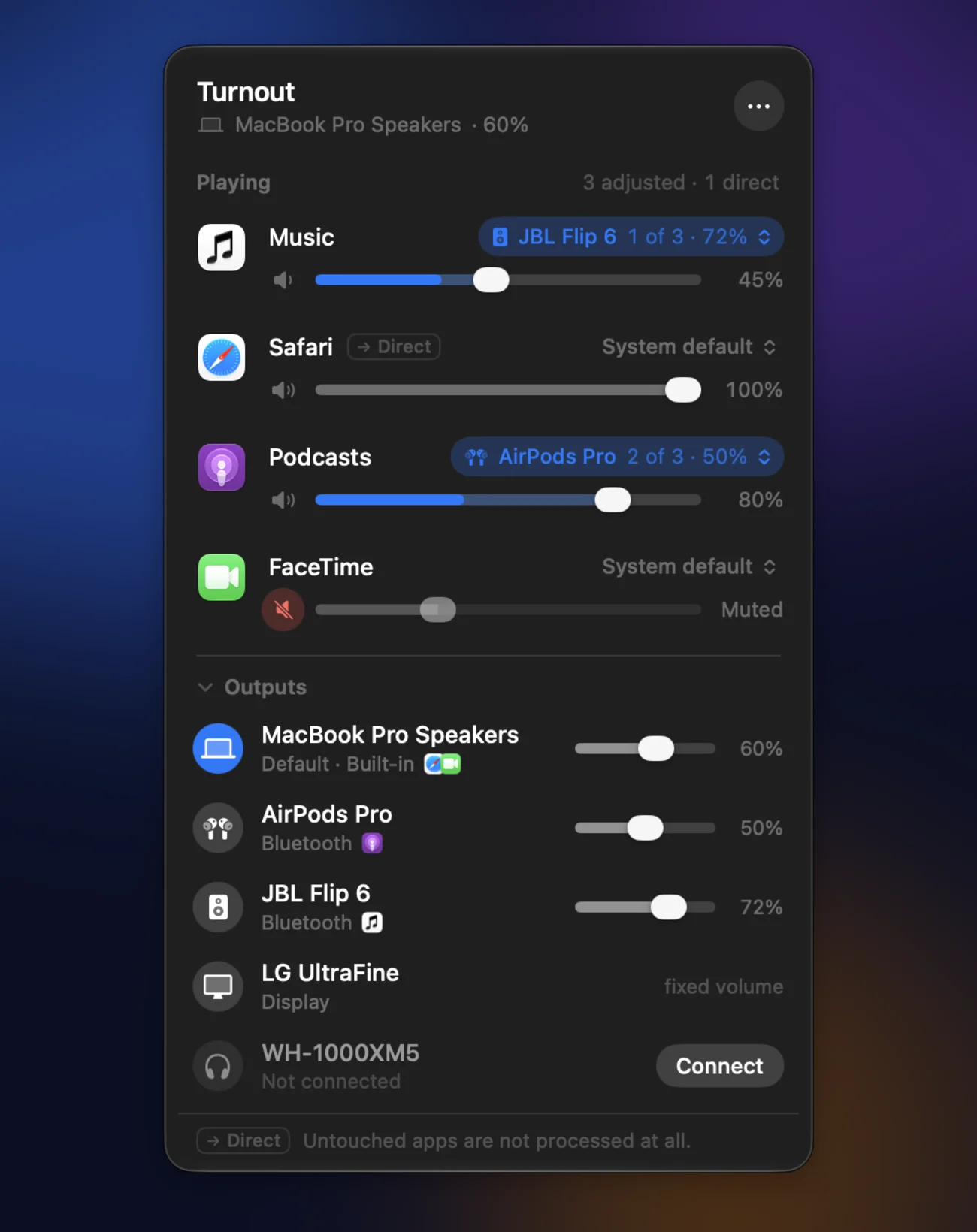
Every app that makes a sound shows up in the menu bar popover with its own slider and its own mute. For the apps you adjust, the live level runs right inside the slider – no second meter, nothing to read.
- Mute one app, not the whole Mac – the struck-through menu bar icon reminds you.
- Helpers count as their app: Safari's web content is Safari, a browser's renderers are the browser.
- Apps you haven't touched carry a small Direct tag: they play exactly as without Turnout.
output · priority list
The speaker if it's there. The AirPods if not. The Mac if neither.
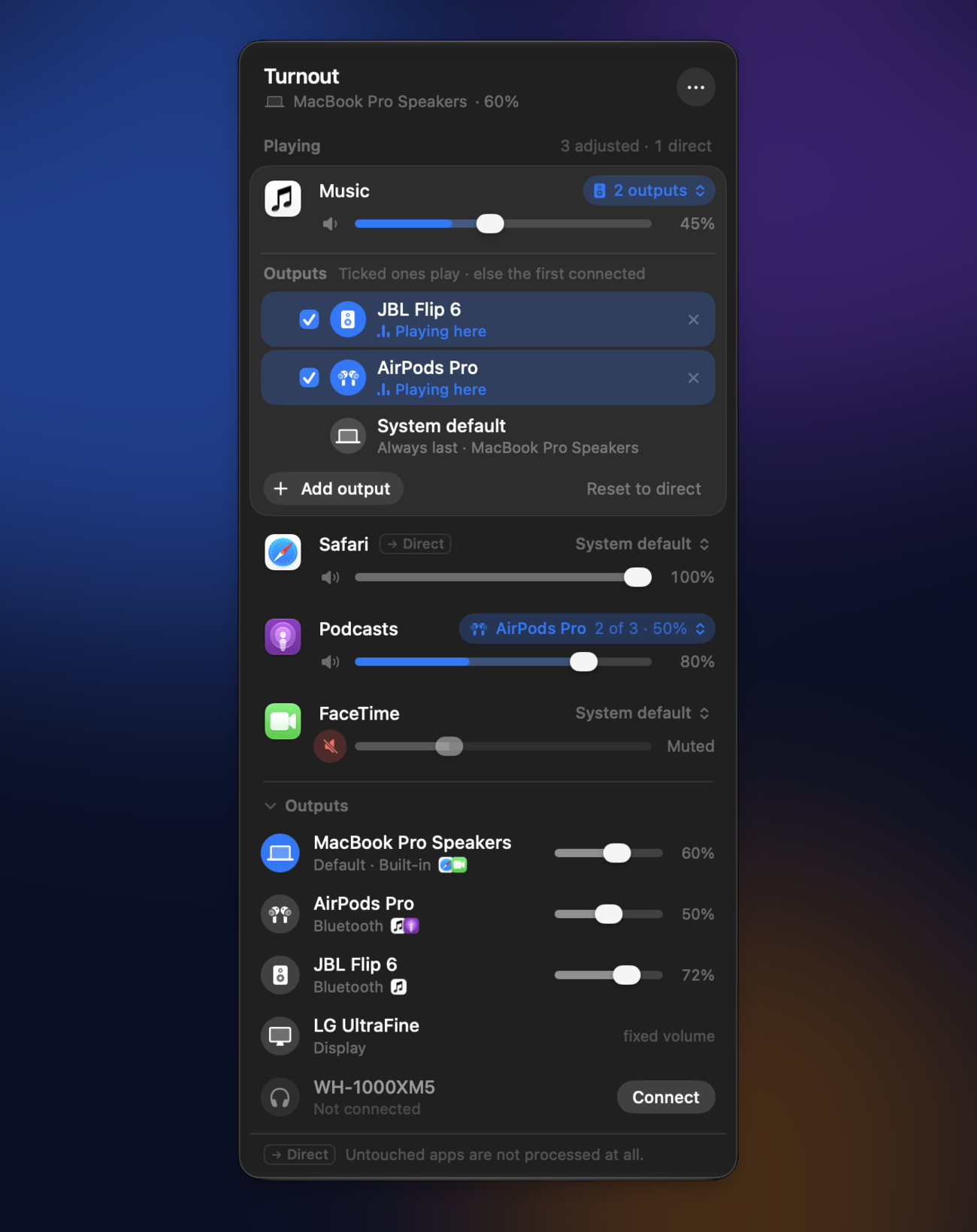
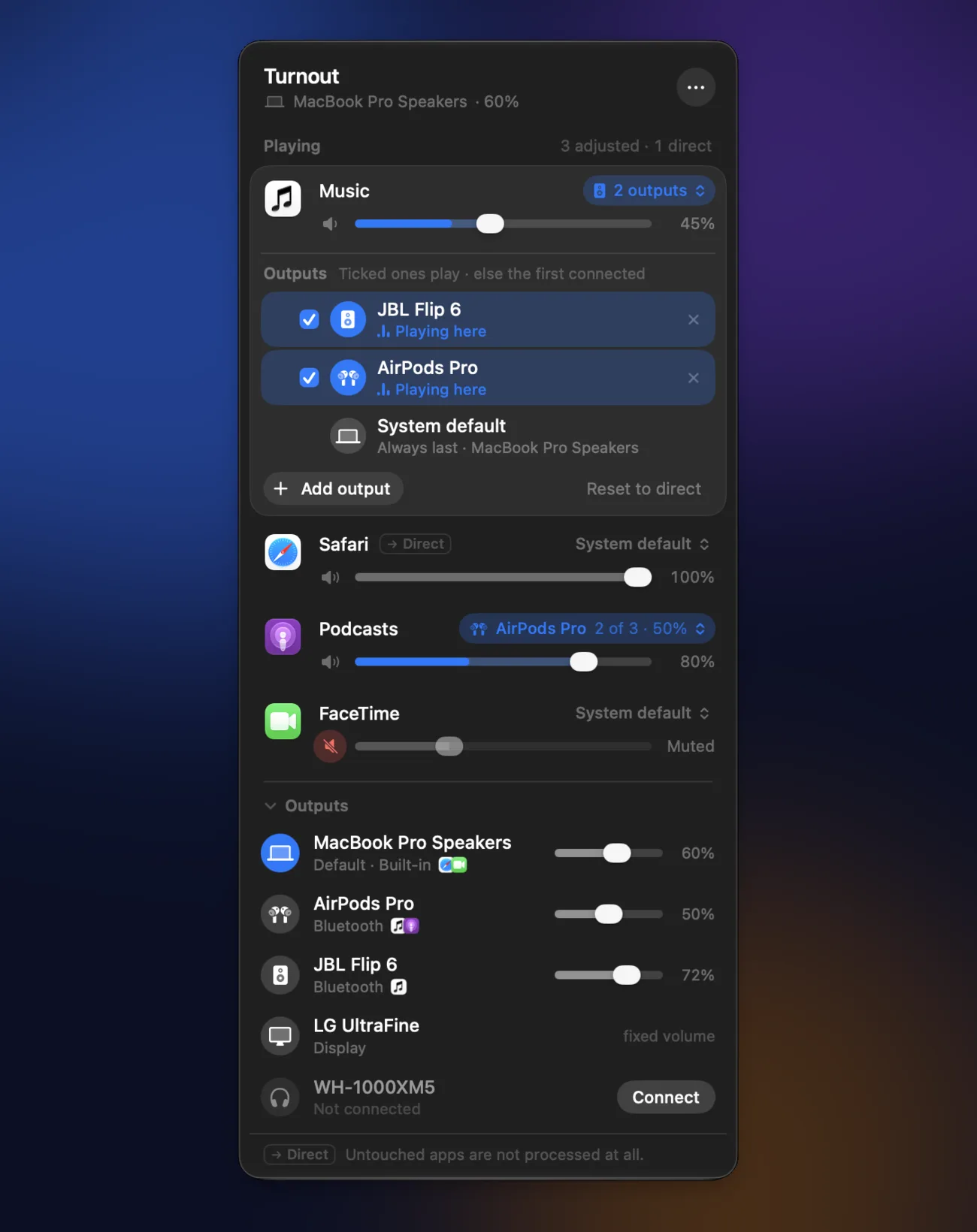
Give an app a list of outputs and it plays on the first one that is connected. The system default is always the last entry, so an app never ends up without a sound. Click the output chip next to the app, and the list opens right there.
- Drag to reorder; add any output your Mac has seen – also while it is switched off.
- Tick several outputs and the app plays on all of them that are connected at once; the order is the fallback when none of them is.
- The chip shows where the app plays, its place in the list and that output's volume – no more wondering why it is so quiet.
auto-switch · undo
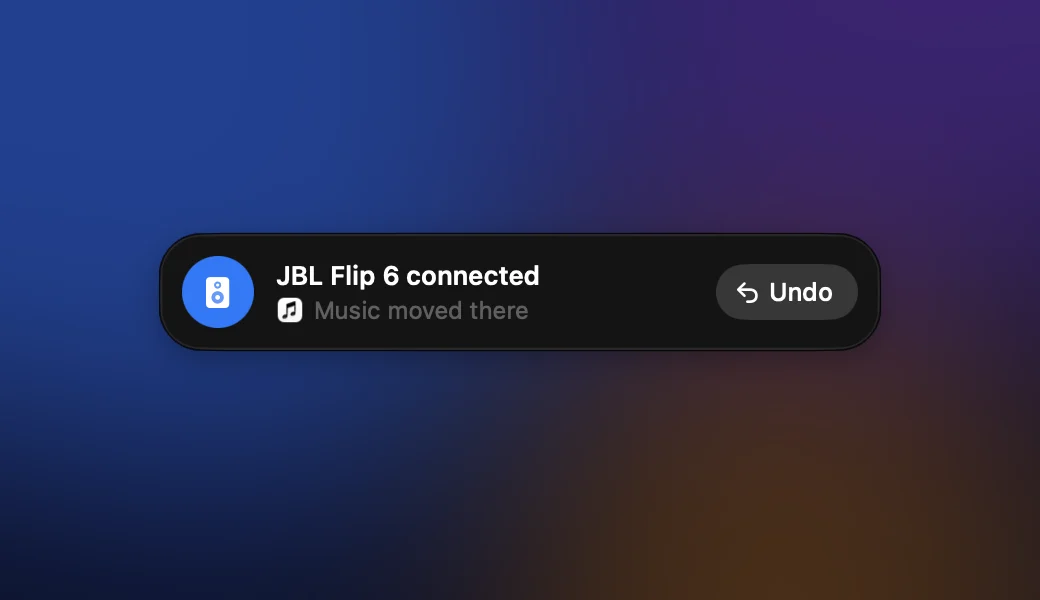
Switch the speaker on. The music follows.
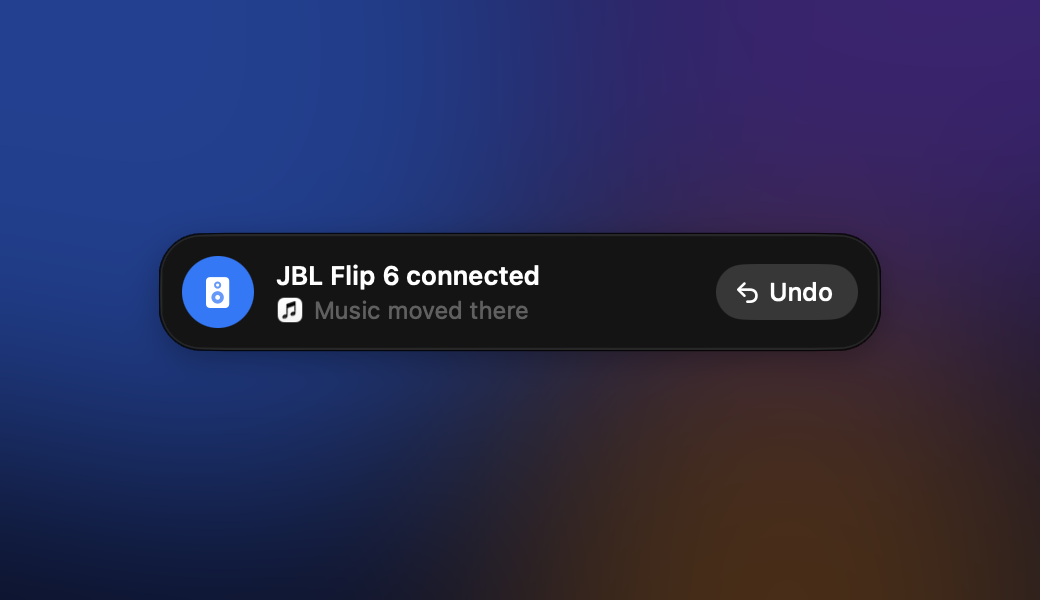
When an output from a list connects or goes away, the apps move by themselves and a small banner under the menu bar says what happened. Not what you wanted this time? Undo keeps the app where it was – until that output goes away or you change the list.
- Falls back to the next entry, never into silence.
- Connect remembered Bluetooth headphones and speakers right from the popover.
- The banner never takes the focus and is gone after a few seconds.
hands off by default
Turnout only steps in where you asked it to.
Most per-app audio tools put every app through their own audio path, all the time. Turnout leaves apps alone until you change something – and steps back out again.
-
App plays
It appears in the popover, tagged Direct. Its sound goes straight to the output, exactly as without Turnout.
-
You adjust it
Turnout takes over just that app with a Core Audio process tap – nothing else on the Mac changes.
-
Right output
Its sound goes to the first available output of its list, at the volume you set.
-
Quiet again
A few seconds after the app goes silent, Turnout lets go of the output – your AirPods are free for the iPhone again.
the small things
Made to be forgotten in the menu bar.
Bluetooth stays hi-fi
Turnout never opens a headset's microphone, so your AirPods don't drop into the muffled call mode just because an app is routed.
Never stuck silent
An app is muted only while Turnout actually plays it. If Turnout quits or hangs, the app is heard again as usual.
Every output's volume
The popover lists all outputs with their own volume. Click one to make it the system output.
Menu bar first
A speaker in the menu bar: with a dot while Turnout manages an app, struck through while one is muted. Launch at login is one switch.
Remembers devices
Outputs you have used are remembered, so a list can name your headphones while they are still in the case.
No EQ, on purpose
Volume, mute and the output – Turnout does one job and leaves the sound itself alone.
cat /proc/trust
It hears your apps. Here is what it does with that.
Changing an app's volume means reading its sound. So this is what Turnout does – and doesn't.
- sound
- Played, never kept. An app's sound goes from the tap straight to the output you chose. Nothing is recorded, stored or sent anywhere.
- microphone
- Not used. macOS calls the permission “audio capture”; it covers the apps' output only. Turnout never opens the microphones of the devices it plays on – other apps use them as usual.
- untouched apps
- No extra path. Apps you haven't adjusted aren't tapped at all – no added latency, no added buffering, nothing to go wrong.
- telemetry
- None. The only call home is the update check against GitLab – once a day only if you say yes when the app first asks, otherwise just when you click it.
- updates
- Installed from within the app, on request. The download must match the release's SHA-256, be signed by the same Developer ID team and be notarized.
- made with
- Anthropic's Claude. Designed and directed by Mario. The code and this website were written by Claude Opus 5.5; Claude Fable 5.2 designed the interface. Built from Apple's documentation – no code from other per-app audio tools. Like all of Turnout it comes as is, without warranty (Apache-2.0) – the source is open, so you can judge it yourself.
- source
- Swift, Apache-2.0, routing decisions unit tested. Read it, build it, break it.
install
Two steps, no installer.
- Download the DMG and drag Turnout into Applications.
- Allow audio capture the first time you adjust an app: macOS asks once. Turn on Launch at Login in the popover's ••• menu if you like.
macOS 26 or later (tested on macOS 27) · Developer ID signed & notarized · Release notes
# to change an app's volume or output
› Audio capture

# only when you click Connect
› Bluetooth

# only if you turn it on
› Login item
Honest status: an early version, in daily use with AirPods, Bluetooth speakers and the built-in speakers, playing from Music and Safari. Not every app and device combination is tested yet. The open list is in TODO.md.

Throw the switch.
macOS 26 or later (tested on macOS 27) · Developer ID signed & notarized · free, Apache-2.0